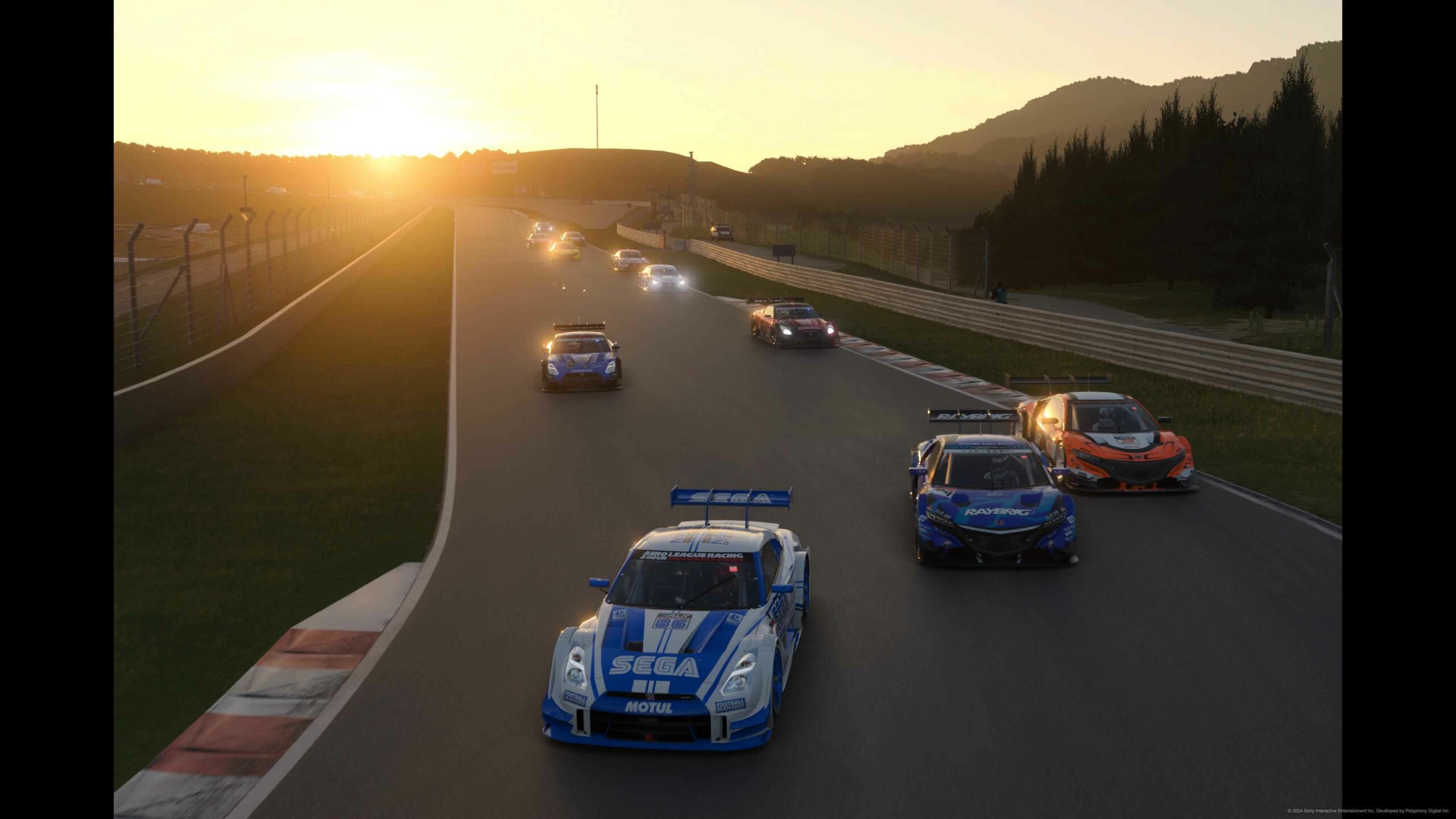
First things first, thank you for taking on the role of lobby host! ALR survives and thrives because of the many volunteers like you who keep things running every week. This guide will walk you through all the practical steps and responsibilities associated with this task.
Pre-Race prep
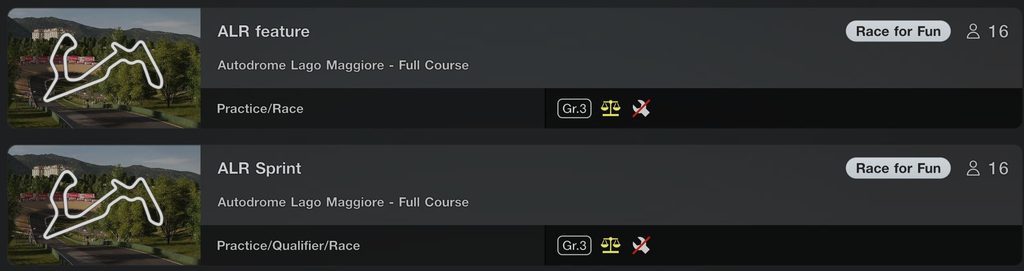
Save lobby settings
For the Monday Gr3 championship, this means saving the settings for the sprint as well as the feature race. We recommend you do this for every round and confirm weekly changing variables like time of day and number of laps using the series calendar in the #gt-calendar channel. Having these settings saved in advance will relieve some of the pressure and stress on race day.
Check attendance and confirm any qualifying or race bans
Your tier helper is responsible for managing the attendance and making sure drivers are registering for the race throughout the week prior to race day. Your responsibility regarding attendance happens just prior to the start of the race and is to track any last minute drop outs/no shows and to fill those empty spots on the grid with any reserve drivers who have signed up and are available. Our goal is to have a full grid on race day, but don’t significantly delay the start of the race trying to track down missing drivers.
You’ll also need to check the #gt-steward-results channel to look for any qualifying or race bans announced for your tier. Drivers should be aware of any bans that need to be served, but sometimes people forget or miss the steward report so it’s a good idea to remind them before the race and ask if they understand how to serve their ban (more about that later).
Race Day
Create the Lobby
In the online multiplayer part of the game choose the  button and click the
 option. For the Monday Gr3 championship you’ll start by loading the sprint settings. After clicking your saved settings, take a minute to double check that everything is correct. Sometimes when a saved lobby setting is loaded things like the time of day will revert to the default “afternoon” even if you saved it as another time.
Once you’ve created the online lobby (preferably at least 15 minutes prior to the scheduled start of the race) use the @Tier ## tag to ping everyone in your tier with the private lobby code so they have time to join the lobby and prepare for the race.
Confirm Attendance
About 5 minutes prior to the race start confirm that all the drivers you expected to attend have signed into the lobby and ping anyone who’s missing in your tier channel. If you don’t get a response from a missing driver after pinging them in discord then start the race without them.
Sprint Qualifying
Once the scheduled race time arrives, and you’ve got everyone you expect in the lobby give everyone a “Starting soon” warning using the in-game chat then click the “Start Qualifying” button. (enjoy the host privilege of being the first to leave the pits and leading the qualifying cars)
Once qualifying has completely concluded and the game returns you to the lobby screen click the results icon (looks like a podium) and use the PS share button to take screenshots of the results. Do not try to take these screenshots as people are finishing qualifying since they will be incomplete/inaccurate.
Give drivers a few moments to change tires if necessary and fire off another “Starting Soon” warning before clicking the “Start race” button.
Sprint Race
After the sprint race ends and you’ve been returned to the lobby screen, click the results icon again and use the PS share button to take screenshots of the results. You’ll need these to set the grid for the feature race.
Feature Race
Give drivers a few minutes (and remind them if you’re feeling kind) to save their race replay then load your feature race settings – taking a moment to double check that the settings are correct. After everyone checks into the race (some people might need to be reminded), you can set the grid. The feature race is a partial reverse grid where only the top ten drivers who scored points in the sprint are reversed. Use the screenshot you took of the sprint results to adjust the grid so that 10th place in the sprint is on pole, 9th place is in second position, and so on until the winner of the sprint start in tenth position. Drivers who finished 11th through 16th in the sprint will start in those positions for the feature.
Take as much time as you need to set the grid and don’t feel rushed. Once you’re satisfied that the grid is set correctly give the drivers one last “Starting Soon” warning and start the race. Once the race has completely finished and you’ve returned to the lobby screen you’ll need to take one more set of screenshots of the results.
Post-Race
You’ve got one more responsibility after the races for that round have been completed. Take all those results screenshots you took from qualifying, sprint, and feature and post them in the #gt-host channel on discord. Bonus points if you post the images in chronological order – the easiest way to do this is to send a separate message for the two qualifying screenshots, then the two sprint screenshots, and finally the two feature results images. (your helper will appreciate it)
If anything unexpected happened in the process of hosting the round be sure to report it to your tier helper. Some examples: if someone quit a race, didn’t show up without prior notice, failed to serve a qualifying ban correctly, or was disrespectful to other drivers either on track or in game chat.
Special Circumstances
Qualifying bans
When a driver has a qualifying ban they must check into the race lobby on time and remain in the pit lane for the duration of sprint qualifying. If you notice the driver leaving the pits for any amount of time and for any reason it needs to be reported to your tier helper. The driver with a qualifying ban will also start from the back of the grid in the feature race regardless of their finishing position in the sprint race. The best procedure for accomplishing this is to set the feature reverse grid as normal (even if the driver with the qualy ban finishes in the top ten), then move the driver with the qualifying ban to the bottom of the grid.
Comments are closed